Showing posts with label Tech Tip. Show all posts
Showing posts with label Tech Tip. Show all posts
Thursday, April 30, 2020
Tech Tip: Latest Posts
This week, I did the tech tip to add a widget on the side of my blog page that lists the posts that I've published recently, just in case the viewer is not on the main page. Steps to do the same are included here

Tech Tip: Weather Widget
For this week's tech tip, I decided to do the weather widget to add a widget on the side of my blog to include the weather where I'm currently at (Broken Arrow, OK).
Monday, April 27, 2020
Tech Tip: Countdown Widget
For this week's tech tip, I decided to try the countdown widget. I chose to make a countdown based on the end of the semester. This semester was probably the most difficult in terms of material for me, so I'll be really glad once it's finally over. This should be the most difficult semester, as I am finishing off the difficult classes and I won't have to take as many credits in the future, so I'm looking forward to the end.
Monday, April 13, 2020
My Library Tech Tip
For this week, the tech tip I am choosing to do is the OU Library's My Library. The library source that I added to my library is the: "IEEE Xplore" resource. It's very useful for the research papers that I do since almost all of the good papers related to my study are commonly IEEE conference papers.
 |
| The Institute of Electrical and Electronics Engineers is one of the largest organizations related to Electrical Engineering and other related subjects |
Monday, March 9, 2020
Tech Tip: Google Data
I use a decent amount of Google services. For my burner emails, I use gmail since it's quick and easy to set up, and I don't have to worry about sensitive information being on a burner. I know that many companies, such as Google, are already gaining information on me. To be honest, it's not an imminent issue for me, since I feel like there's not much they can do with information about me. I've just learned that everything about me is already about there, so there's not much that I can even do. One of the best resources that I use in my everyday life is Reddit. r/privacy is a good to read news or research more about internet privacy.
Monday, February 24, 2020
Tech Tip: Backing up data
Over the past week, I attempted to undervolt the processor in my laptop. In turn, this gives better battery life and reduces the overall heat in the laptop. However, I ended up going too far and corrupted the data on my laptop. What a shame. The tech tip that I have for this week is backing up your data. There's many of programs on the market that make backing up data incredibly simple and easy. For my own use, I am using "Macrium Reflect Free", but any backup programs are sure to be useful. Just a quick side note: if you're running your PC using a traditional hard drive instead of an SSD, that is your greatest bottleneck. SSD's are much faster than traditional hard drives in terms of speed. However, SSD's are more volatile and have a lower lifespan than traditional hard drives, although they're still pretty safe to use. In my opinion, when using an SSD for your computer, it's a really good idea to run a backup schedule that backs up your data to a traditional hard drive. This setup combines the speed of an SSD along with the reliability of a traditional hard drive.
 |
| Backing up your data is easily done with the use of a traditional hard drive |

Monday, February 17, 2020
Tech Tip: Online Typing Test
I would say that I'm a pretty proficient typer. While KeyHero is the typing test that is being outlined in the tech tip on the course page, I'm a big fan of typeracer. There's not much different between different online typing tests in my honest opinion. However, typeracer lets me compete with other people in my typing. There's just something about competition to me that really appeals to me. You can even share links to your friends and race in real time. But I've been typing for most of my life, so it's always fun to compare myself with others. I also have a $100 keyboard for "the feels". It's much more comfortable than many other keyboards. There's actually a large enthusiast community behind mechanical keyboards. $100 is on the cheaper end. Some of the keyboards can be as much as $1000. I would definitely agree with the sentiment that a better keyboard can make you a more efficient typer. So if you type a lot for school or work, just know that there's a market out there for nicer keyboards. On a sidenote, I've actually also built a keyboard from scratch using a microcontroller, diodes, switches, and wires, which was really fun to do.
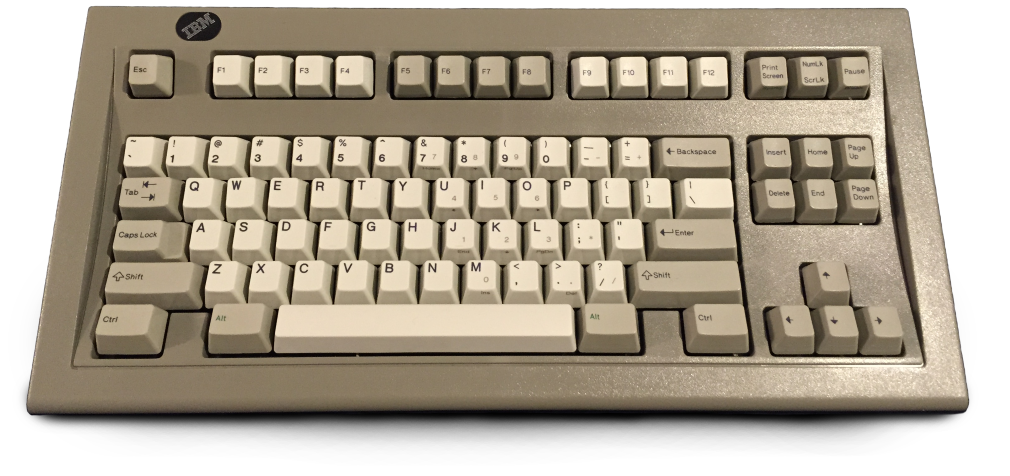 |
| The IBM Model M keyboard. Regarded as the "holy grail" of keyboards due to its build quality and tactile feel |
Wednesday, January 29, 2020
Tech Tip: Dual Boot Operating Systems
This tech tip may not exactly be pertinent to this course, but I think that it's a very technological tip useful to have at your disposal. For my last tech tip, I wrote about text editors, and this tech tip will be slightly related.
If you're familiar there are many operating systems: Windows, MacOS, and Linux are the main ones floating around. I'm sure that the first two, Windows and Mac, are fairly known. However, not many people are familiar with the Linux operating system.
For a quick summary of what the Linux operating system entails, essentially, Linux is a open-source freeware operating system as compared to Windows and MacOS which are commercial products entailed towards consumers. Essentially a public library compared to a book store. Linux is used for professional use in many technical areas. So it's good to be familiar with the system if you're involved in a particular field (although it has a learning curve compared to Windows and MacOS). I am a big advocate for the use of Linux systems due to the fact that it values public and free information of its use. The Linux system is free online, and any person can view the source code to see what exactly makes up the Linux operating system and see what they are installing on their computer. In this day and age, both Windows and MacOS come preinstalled with software that allows Microsoft and Apple to track your information. Linux will always be free to install and secure. It's extremely fast and memory&CPU efficient.
On to the tech tip, the Linux OS does have its caveats. It's a bit difficult to ease into:
My tech tip is to dual boot (or even tri-boot) multiple operating systems. You can have multiple operating systems installed on the same computer and use each one accordingly to which particular function you need at the moment. There are many resources online that you can search up that instruct and guide through the process of doing this. However, if you don't know what you're doing, there's possibility to accidentally erase your data, so it's a good idea to back up (That's also a really good tech tip. BACK-UP YOUR DATA!).
Learning how to install multiple operating systems is also useful because you get to be more proficient on working with the computer BIOS. I would say that doing this sort of stuff with computers is similar to working on a car. You gain so much knowledge about the specifics. The next time your hard drive fails, you can diagnose and fix the issue just like changing your own oil or switching a tire in a car.
Even if Linux is not attractive to you, there are many software that are on Windows but not on MacOS (and vise-versa), so a multiboot is still very useful. However, a caveat on MacOS is that MacOS can only be installed on Apple products. So "theoretically", Apple products are the only devices that can "tri-boot".
If you're familiar there are many operating systems: Windows, MacOS, and Linux are the main ones floating around. I'm sure that the first two, Windows and Mac, are fairly known. However, not many people are familiar with the Linux operating system.
For a quick summary of what the Linux operating system entails, essentially, Linux is a open-source freeware operating system as compared to Windows and MacOS which are commercial products entailed towards consumers. Essentially a public library compared to a book store. Linux is used for professional use in many technical areas. So it's good to be familiar with the system if you're involved in a particular field (although it has a learning curve compared to Windows and MacOS). I am a big advocate for the use of Linux systems due to the fact that it values public and free information of its use. The Linux system is free online, and any person can view the source code to see what exactly makes up the Linux operating system and see what they are installing on their computer. In this day and age, both Windows and MacOS come preinstalled with software that allows Microsoft and Apple to track your information. Linux will always be free to install and secure. It's extremely fast and memory&CPU efficient.
On to the tech tip, the Linux OS does have its caveats. It's a bit difficult to ease into:
- You must be comfortable without a graphical user interface and be able to type in a command line terminal (There are resources online).
- It does not have many of the commercial products and software available on Windows and MacOS (However, there are many open-source free alternative software available that fall in line with Linux's free mission statement.
My tech tip is to dual boot (or even tri-boot) multiple operating systems. You can have multiple operating systems installed on the same computer and use each one accordingly to which particular function you need at the moment. There are many resources online that you can search up that instruct and guide through the process of doing this. However, if you don't know what you're doing, there's possibility to accidentally erase your data, so it's a good idea to back up (That's also a really good tech tip. BACK-UP YOUR DATA!).
Learning how to install multiple operating systems is also useful because you get to be more proficient on working with the computer BIOS. I would say that doing this sort of stuff with computers is similar to working on a car. You gain so much knowledge about the specifics. The next time your hard drive fails, you can diagnose and fix the issue just like changing your own oil or switching a tire in a car.
Even if Linux is not attractive to you, there are many software that are on Windows but not on MacOS (and vise-versa), so a multiboot is still very useful. However, a caveat on MacOS is that MacOS can only be installed on Apple products. So "theoretically", Apple products are the only devices that can "tri-boot".
Tech Tip: Text Editor
Since I have previously taken the Myth. and Folklore course a few semesters ago, it seems that I have exhausted most of the recommended tech tips. However, luckily, I have a few tech tips that I use that are not listed.
Text editing is extremely important and useful to do when working digitally. Not even overstating it, tech files are the most used and useful types of files for any use on a computer. Virtually every file is derived from a text file in some form of shape.
The standard text editor is notepad for windows and textedit for macOS. However, both are fairly function-deficient in terms of use. A few recommendations I have are: vi/vim/nanovim (different forks of vi), emacs, and notepad++. Personally, I use vim on my Linux device. I will admit that vi forks and emacs have a steep learning curve since there is no user interface. However, when you learn it, you will never have to take your hands off the keyboard since there are so many hotkeys that allow you to traverse the text file in an instant (much faster than using a mouse). As for Windows, I'm not entirely sure if vim is supported, but I know that notepad++ is available (and fairly easy to use).
As for purposes of this class, I think that using a text file in order to write for the assignments is very useful. You don't have to pull up any online writing site (similar to the writing in webpage tech tip) such as Google Docs or Blogger. The text file is local to your system. It's extremely fast and you don't have to rely on any other factor. Personally, since I have to deal with many text files, it's very efficient to learn these text editors in order to increase my productivity.
Text editing is extremely important and useful to do when working digitally. Not even overstating it, tech files are the most used and useful types of files for any use on a computer. Virtually every file is derived from a text file in some form of shape.
The standard text editor is notepad for windows and textedit for macOS. However, both are fairly function-deficient in terms of use. A few recommendations I have are: vi/vim/nanovim (different forks of vi), emacs, and notepad++. Personally, I use vim on my Linux device. I will admit that vi forks and emacs have a steep learning curve since there is no user interface. However, when you learn it, you will never have to take your hands off the keyboard since there are so many hotkeys that allow you to traverse the text file in an instant (much faster than using a mouse). As for Windows, I'm not entirely sure if vim is supported, but I know that notepad++ is available (and fairly easy to use).
As for purposes of this class, I think that using a text file in order to write for the assignments is very useful. You don't have to pull up any online writing site (similar to the writing in webpage tech tip) such as Google Docs or Blogger. The text file is local to your system. It's extremely fast and you don't have to rely on any other factor. Personally, since I have to deal with many text files, it's very efficient to learn these text editors in order to increase my productivity.
Monday, January 27, 2020
Tech Tip: Firefox
I've used Mozilla Firefox on multiple occasions. While I like Google Chrome for its sleek and simple design, its memory efficiency is a hot mess. I'm not entirely sure what it is, but its memory management is very poor. I would say any of the other browsers is better in terms of memory. However, out of the other browsers, I would have to say that Mozilla Firefox has the most features as well as having great memory management compared to Google Chrome. I carry around an old laptop with me for classroom purposes. I upgraded it to 8Gb of memory and it's a necessity for me to use Firefox on it. While 8Gb of memory is a decent amount (I have around 40 tabs open on average most of the time. Don't ask. I don't know what's wrong with me), it's not enough to fuel Google Chrome. Firefox is quite snappy with it though.
Subscribe to:
Posts (Atom)